Use this guide to turn approved content and images into a Gitforce Insights article.
1. Gather the content
Prepare:
- The approved blog text.
- A hero image and any inline images.
- A short SEO description.
- The intended author, team, content type, audience, and tags.
2. Add the images
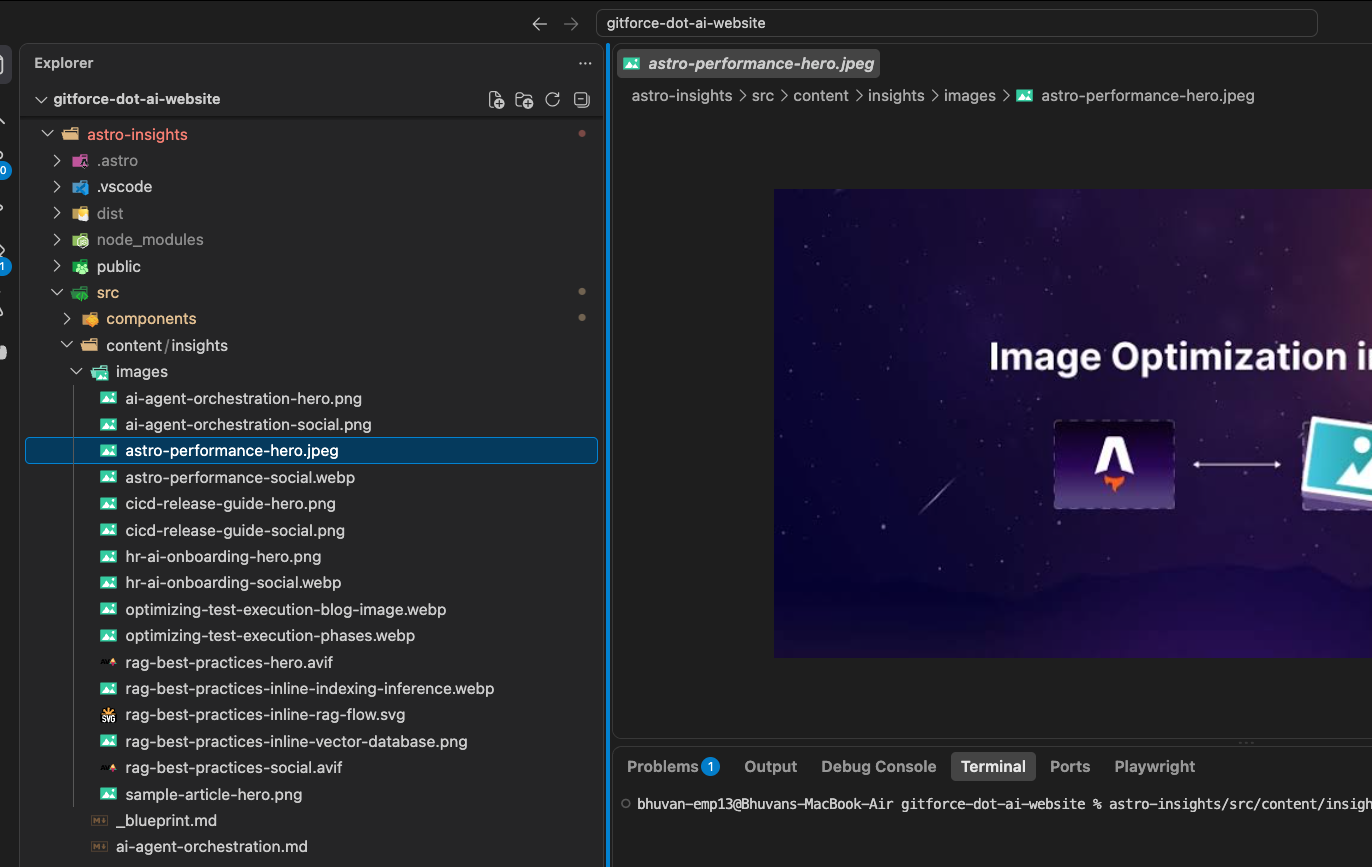
Save blog images here:
astro-insights/src/content/insights/images/
Use lowercase filenames with hyphens, for example:
astro-performance-hero.webp
astro-performance-social.webp
3. Give the content to AI
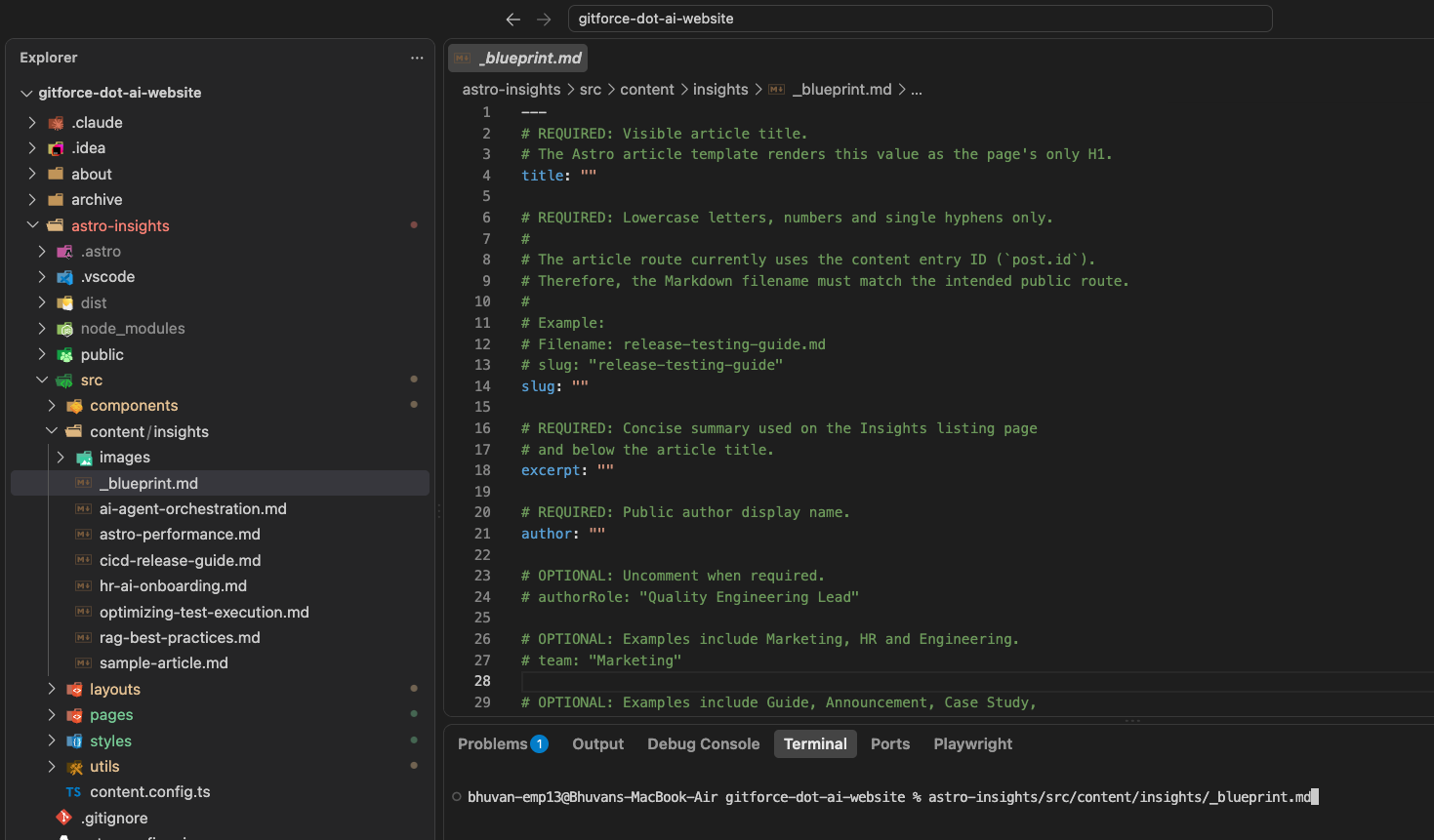
Open the committed blueprint:
astro-insights/src/content/insights/_blueprint.md
Paste one prompt into ChatGPT or Gemini. Include the complete blueprint, the image paths, and the approved blog content in the same message.
Create one complete Markdown article using the blueprint below.

Use the blueprint as the source of truth. Follow its fields and formatting rules exactly. Do not add, remove, or rename fields. Return only the final Markdown file inside one Markdown code block.

Blueprint:
[Paste the complete contents of _blueprint.md here]

Image paths from the project root:
[Paste each image path, one per line]

Approved blog content:
[Paste the complete blog content here]
The AI should use the supplied image paths exactly and return valid frontmatter followed by the article content. The AI output is a draft; review it before adding it to the repository.
The AI output is a draft. Review it before adding it to the repository.
4. Check the blueprint fields
The generated file must include:
title,excerpt,author, andpublishDate.seoTitle,metaDescription,ogImage, andogImageAlt.draftandfeatured.- Correct local image references and alt text.
- Optional
authorRole,team,contentType,audience, andtagswhen useful.
The article filename becomes its URL. Use lowercase letters, numbers, and single hyphens only.
5. Save the article
Create the file here:
astro-insights/src/content/insights/<article-slug>.md
Example:
astro-insights/src/content/insights/astro-performance.md
Paste the reviewed AI output into that file. Do not edit _blueprint.md.
6. Test the build
From the project root, run:
./build.sh
If the build fails, give the complete error and the Markdown file to the AI. Ask it to correct the Markdown/frontmatter only. Do not change the schema or application code to hide a content error.
If the build succeeds, remove generated local output before committing:
rm -rf -- ./insights
Do not remove ./astro-insights.
7. Review and publish
Set draft: false only when the article is approved for publication. Keep featured: false unless the team approves it for the featured area.
Then:
- Review the article at
/insights/<article-slug>locally. - Commit the Markdown file and its images on the task branch.
- Open a pull request into
develop. - After review and merge, promote the change to
staging. - Wait for the Vercel deployment to finish, refresh
/insights, and open the new article URL.
Final checklist
- Images are in
astro-insights/src/content/insights/images/. - The filename and image paths use lowercase hyphenated names.
- Required frontmatter fields are present and valid.
-
draftandfeaturedhave the approved values. -
./build.shsucceeds. - The local article page looks correct.
- Only the Markdown file and required images are committed.
- The staging article loads after deployment.
Common fixes
- Missing field: compare the frontmatter with
_blueprint.md. - Invalid image: verify the path and filename character-for-character.
- Duplicate URL: choose a unique filename.
- Article not visible: check that
draft: falseand rebuild. - Build error: give the complete error and Markdown file to the AI; request a content-only fix.