Guide
Running Local LLMs Across Multiple User Accounts with Ollama in 2026
A practical guide to choosing, running, and sharing Ollama models across macOS, Linux, and Windows without wasting disk space.
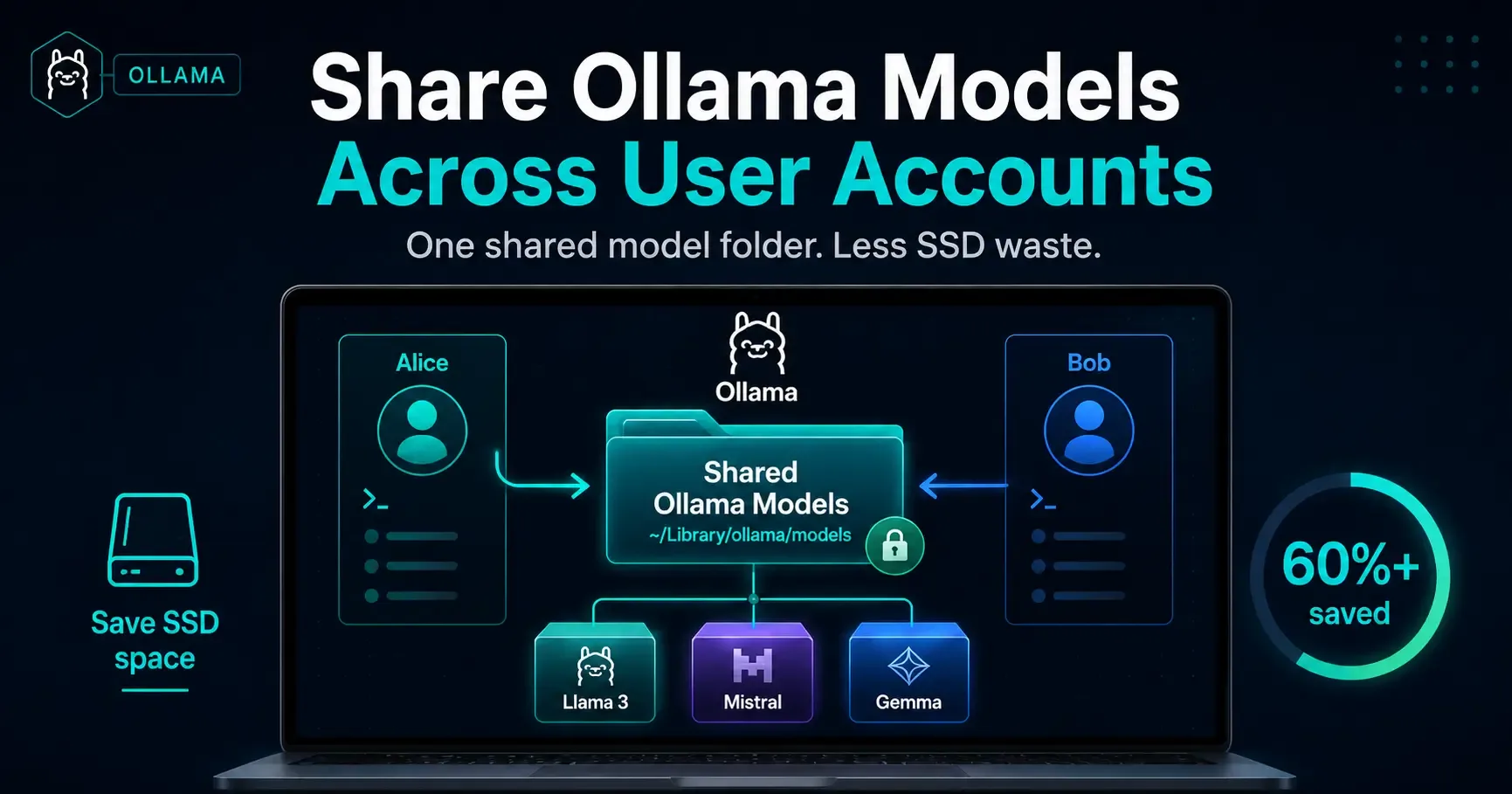
Running Ollama locally works well until more than one user account exists on the same machine.
That was the exact problem I ran into.
I keep separate OS profiles for personal and professional development. Ollama works normally in both, but each profile can end up with its own model directory.
That means a model downloaded by one account may be downloaded again by another.
With models easily taking several gigabytes, the wasted SSD space adds up quickly.
The main problem
On a typical macOS setup, one user may have:
/Users/alice/.ollama/modelswhile another gets:
/Users/bob/.ollama/modelsThe same situation applies to separate Windows profiles.
If Alice downloads a 6 GB model and Bob later runs the same model, Bob may receive another copy under his own profile.
The actual requirement is much simpler:
Alice ─┐
       ├──> Shared Ollama Models
Bob ───┘
Both accounts should keep their own:
- home directories;
- projects;
- SSH keys;
- shell configuration;
- development settings.
Only the large Ollama model files need to be shared.
The goal is to share the model store, not the user environment.
What happens when another user account is created?
Suppose Ollama is already working for the first account.
A model is downloaded:
ollama pull llama3.2:3bLater, a second OS account is created.
The new account does not automatically have access to the model downloaded by the first account.
Its Ollama installation may look for models inside its own profile:
~/.ollama/modelsSo running:
ollama run llama3.2:3bcan trigger another download.
The clean solution is to move the actual models into one common directory and point every trusted user account to it.
The exact configuration differs slightly between macOS, Linux, and Windows.
Configure shared models on macOS
I use:
/Users/Shared/ollama_modelsas the common model directory.
Stop Ollama
Before changing model directories:
pkill -f OllamaVerify that it stopped:
pgrep -fl OllamaCreate a shared group
A dedicated group is better than giving every local user unrestricted access.
sudo dseditgroup -o create ollamausersAdd the current account:
sudo dseditgroup -o edit -a "$USER" -t user ollamausersAdd another account:
sudo dseditgroup -o edit -a seconduser_name -t user ollamausersAfter changing group membership, log out and back in once.
Create the shared model directory
sudo mkdir -p /Users/Shared/ollama_models
sudo chown root:ollamausers /Users/Shared/ollama_models
sudo chmod 2770 /Users/Shared/ollama_models
Add inheritable permissions:
sudo chmod +a \
"group:ollamausers allow list,search,readattr,readextattr,readsecurity,add_file,add_subdirectory,delete_child,writeattr,writeextattr,file_inherit,directory_inherit" \
/Users/Shared/ollama_models
Move existing models
Instead of downloading them again, copy the current store:
sudo rsync -a --info=progress2 \
"$HOME/.ollama/models/" \
"/Users/Shared/ollama_models/"
Keep the old directory temporarily as a backup:
mv "$HOME/.ollama/models" "$HOME/.ollama/models.backup"Create the symlink
mkdir -p "$HOME/.ollama"
ln -s /Users/Shared/ollama_models "$HOME/.ollama/models"
Verify:
ls -ld "$HOME/.ollama/models"Configure the second macOS account
Log into the second account and stop Ollama.
If that account already contains models, merge them first:
sudo rsync -a --info=progress2 \
"$HOME/.ollama/models/" \
"/Users/Shared/ollama_models/"
Then:
mv "$HOME/.ollama/models" "$HOME/.ollama/models.backup"

mkdir -p "$HOME/.ollama"

ln -s /Users/Shared/ollama_models "$HOME/.ollama/models"
Both accounts now point to the same physical model directory.
Configure shared models on Linux
Linux can be simpler because a standard Ollama installation often runs as a single system service.
Check:
systemctl status ollamaIf both users connect to the same service at:
http://localhost:11434they already use the same server-side model storage.
In that case, separate per-user symlinks are unnecessary.
Move the service model directory if needed
If you want the shared models in a dedicated location:
sudo mkdir -p /var/lib/ollama-models
sudo chown -R ollama:ollama /var/lib/ollama-models
sudo chmod 750 /var/lib/ollama-models
Stop Ollama:
sudo systemctl stop ollamaCopy existing models:
sudo rsync -a --info=progress2 \
/usr/share/ollama/.ollama/models/ \
/var/lib/ollama-models/
Open the service override:
sudo systemctl edit ollama.serviceAdd:
[Service]
Environment="OLLAMA_MODELS=/var/lib/ollama-models"
Reload and restart:
sudo systemctl daemon-reload
sudo systemctl restart ollama
Now every local user connecting to the same Ollama service uses that common model store.
Configure shared models on Windows
For Windows, I use:
C:\Users\Public\ollama_modelsStop Ollama
Quit it from the system tray or run:
Get-Process ollama -ErrorAction SilentlyContinue | Stop-Process -ForceCreate the shared directory
From an Administrator PowerShell session:
New-Item -ItemType Directory `
    -Path "C:\Users\Public\ollama_models" `
    -Force
Allow local users to modify the directory:
icacls "C:\Users\Public\ollama_models" `
    /grant "*S-1-5-32-545:(OI)(CI)M"
Move existing models
$Source = Join-Path $HOME ".ollama\models"
$Destination = "C:\Users\Public\ollama_models"

robocopy $Source $Destination /E /COPY:DAT /DCOPY:DAT /R:2 /W:2
Keep the original as a temporary backup:
Rename-Item $Source "models.backup"Create a junction
From Command Prompt:
mklink /J "%USERPROFILE%\.ollama\models" "C:\Users\Public\ollama_models"Configure another Windows account
Log into the second account.
If it already has models, merge them:
$Source = Join-Path $HOME ".ollama\models"
$Destination = "C:\Users\Public\ollama_models"

robocopy $Source $Destination /E /COPY:DAT /DCOPY:DAT /R:2 /W:2
Back up its original directory:
Rename-Item $Source "models.backup"Then create the same junction:
mklink /J "%USERPROFILE%\.ollama\models" "C:\Users\Public\ollama_models"Both Windows profiles now use the same model files.
How to test the setup
The simplest test is to download a model from one account and run it from another.
Test 1: Download from the first account
ollama pull llama3.2:3bCheck:
ollama listTest 2: Switch users
Log into the second OS account and run:
ollama listThe same model should already appear.
Now run:
ollama run llama3.2:3bIf Ollama starts the model without downloading the same model data again, the shared model directory is working.
Test 3: Verify writes from both accounts
From the second account:
ollama pull gemma3:1bSwitch back to the first account:
ollama listgemma3:1b should now appear there too.
That confirms both accounts can read from and write to the same model store.
One important side effect
Because the storage is shared, deletion is shared as well.
For example:
ollama rm gemma3:1bremoves that model from the common store, so it disappears for the other account too.
For that reason, I only use this setup between trusted local users.
Conclusion
The problem was never Ollama itself. It was the way separate OS accounts naturally get separate storage.
Without changing anything, this can happen:
User A → Model copy
User B → Same model copy
After moving the models into one shared location:
User A ─┐
        ├──> One shared model store
User B ─┘
The user accounts remain isolated, while the machine stores the largest files only once.
For a laptop with multiple development profiles, that is all I really need:
Download the model once, keep one shared copy, and let every trusted account use it.
Share this insight
Have a Critical Release to Test or an AI Agent to Build?
Tell us what you are working on. We will help define the right approach and move it toward a dependable production outcome.
Featured insights
More from Gitforce
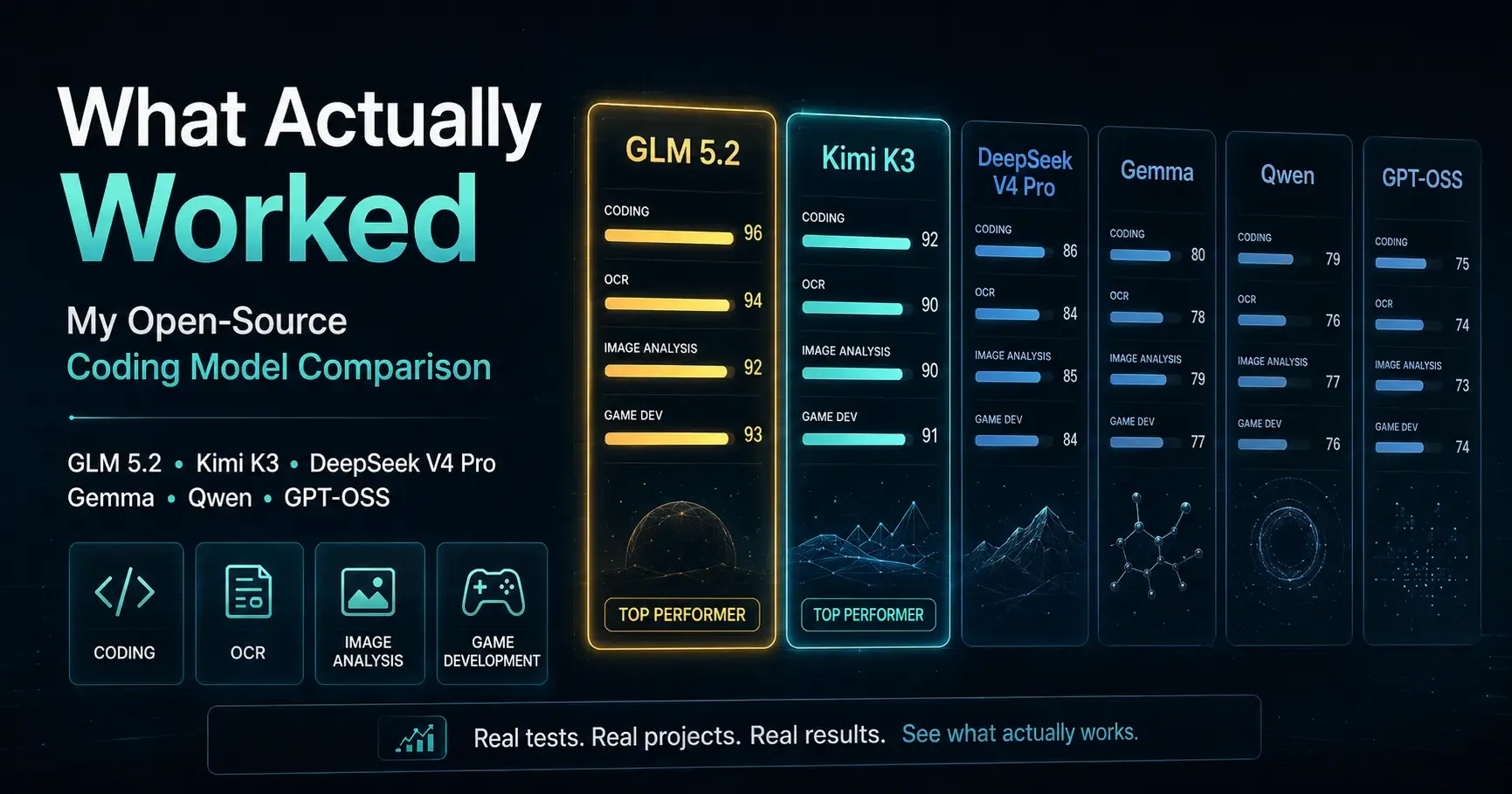
What Actually Worked: My Open-Source Coding Model Comparison
A hands-on comparison of six open models across coding, OCR, image analysis and game development, measured by usable output rather than benchmark claims.
Read article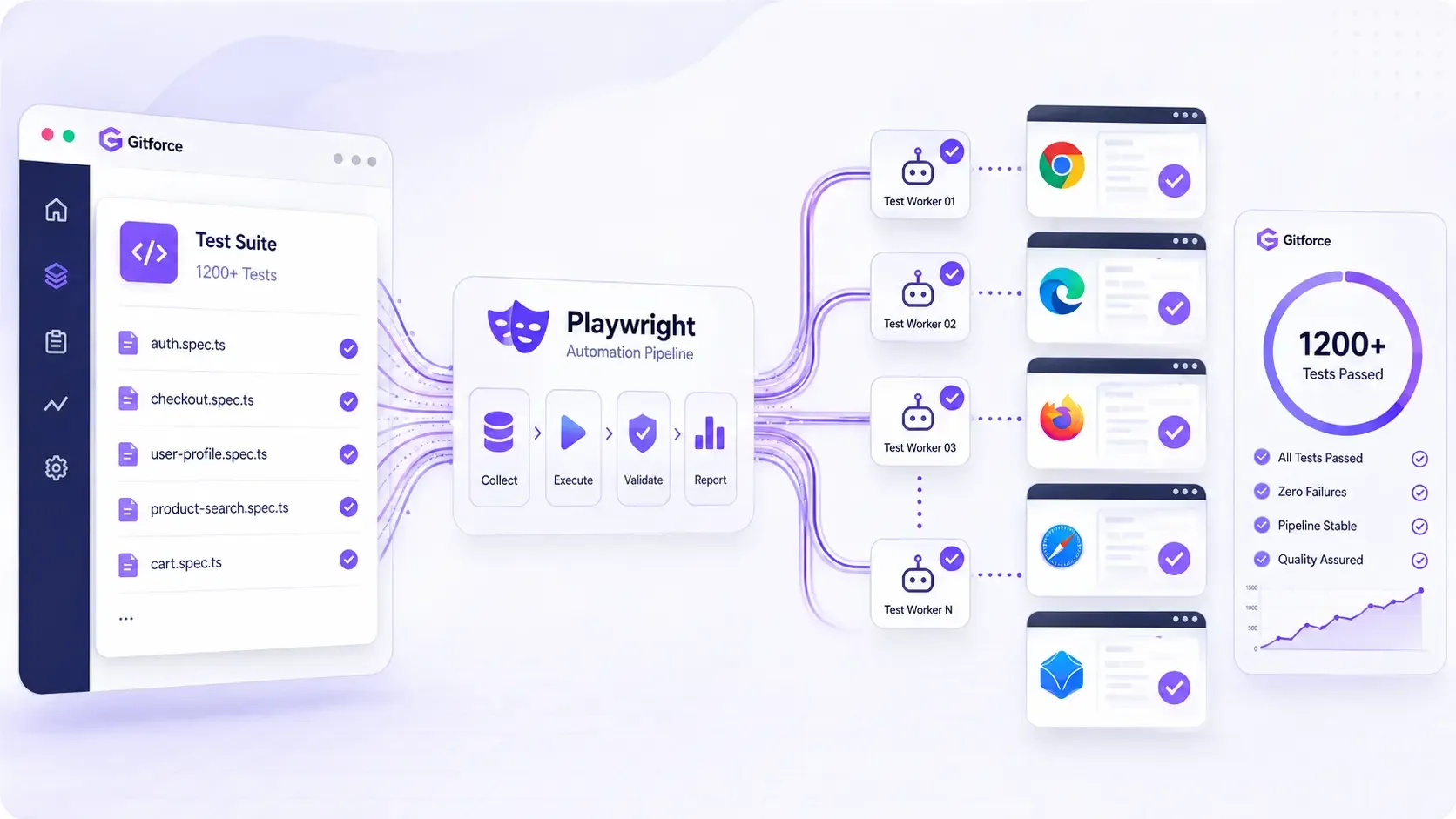
Optimizing Test Execution: How We Reduced a Large Automation Suite from 8 Hours to 1.5 Hours
How a deterministic Playwright framework, manifest-driven test design, controlled state, and single-worker execution reduced a 623-test suite from eight hours to about 1.5 hours.
Read article